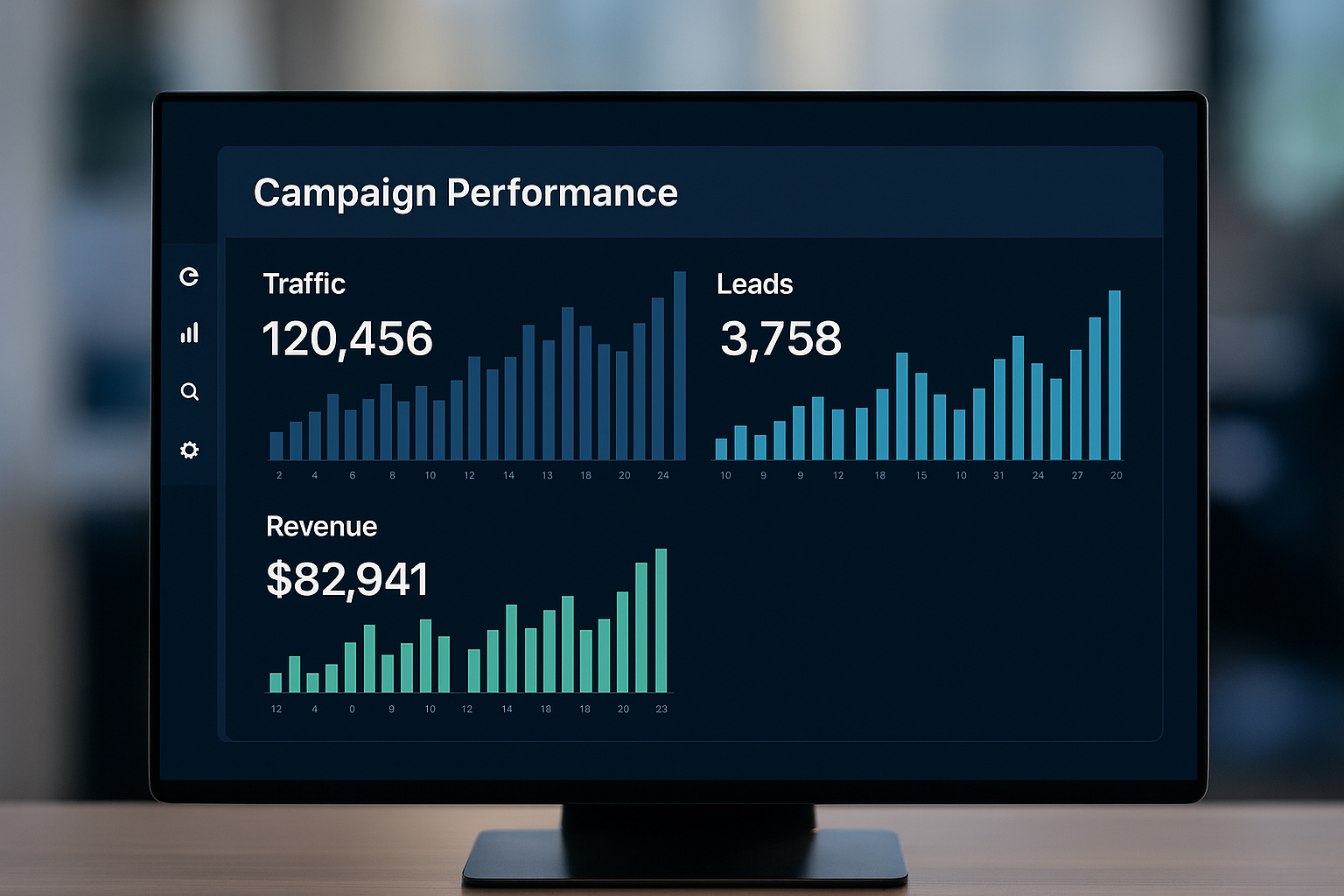
If you’re Googling conversion tracking, you’re probably trying to answer one very practical question: Are my marketing efforts actually producing results I can measure and trust? That could be sales, leads, enquiries, sign-ups, downloads, or any step that moves someone closer to becoming a customer.
And if you’ve searched “how to check if conversion tracking is working”, there’s a good chance something feels off—maybe your ad platform shows “Unverified,” GA4 doesn’t show the right events, or your numbers don’t match between tools. This guide walks you through what conversion tracking is, how it works, and how to verify it properly.
Want confidence that your tags, key events, and ad platform conversions are set up correctly? Book a free conversion tracking audit with our team.
What is Conversion Tracking?
Conversion tracking is the process of measuring the actions people take that contribute to a business goal, like buying a product, submitting a form, signing up for a newsletter, or downloading a resource – so you can see what’s working and what needs improving.
In mobile app marketing, the concept is similar, but it’s often described as tracking a mapped event inside an app via a mobile measurement partner (for example, installs, sign-ups, or purchases) so advertisers can understand which sources drive valuable users.
Why is Conversion Tracking Important?
If you’re asking why conversion tracking is important, it comes down to decision-making. Without conversion tracking, you can still see clicks and visits—but you can’t reliably connect marketing spend and effort to outcomes that matter (revenue, leads, bookings, enquiries).
It’s also what turns your marketing into something you can improve. When conversion actions are measured, you can compare channels, creatives, landing pages, and keywords, then optimise based on evidence rather than hunches.
For advertisers using Google Ads, conversion tracking is explicitly positioned as a way to understand which ads drive value and how to optimise campaigns to meet business goals. In other words, it’s not just reporting – it directly supports better optimisation decisions.
How Does Conversion Tracking Work?
At a high level, conversion tracking work looks like this:
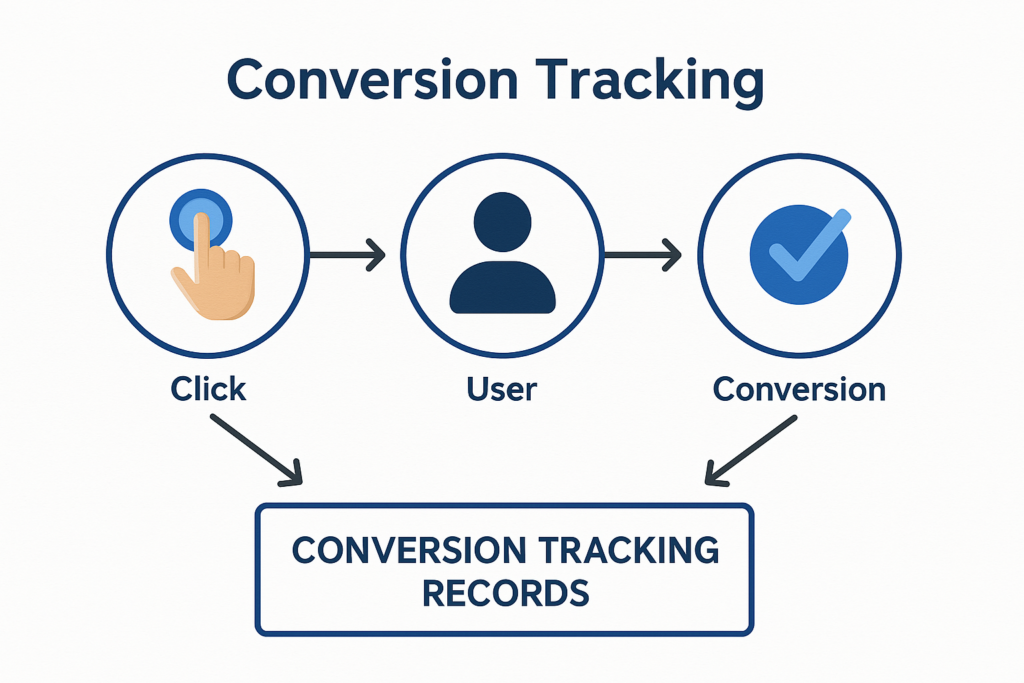
You define a conversion action (the activity you care about), install tracking (tags or SDKs), and when a user completes that action, the tag fires and sends data to your chosen platforms. The platform then records that conversion and attributes it back to marketing touchpoints based on its attribution rules.
For Google Ads website conversion tracking specifically, Google explains that site-wide tagging sets cookies on your domain that can store a unique identifier for the user or the ad click that brought them to the site. Those cookies receive ad-click information from the GCLID parameter included with the conversion tracking setup.
Implementation-wise, Google’s recommended approach uses the Google tag plus an event snippet. The Google tag is placed on all pages (typically in the <head>), while the event snippet should be installed on the conversion page itself (and Google notes the <head> placement for best accuracy).
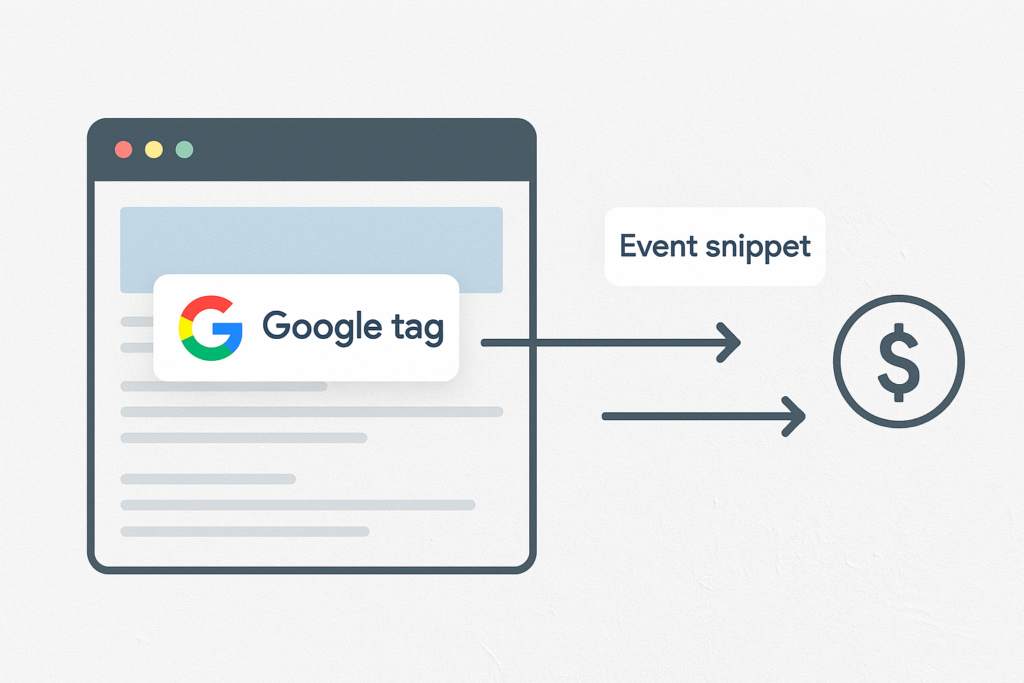
If you implement via Google Tag Manager, Google explicitly recommends using the Conversion Linker tag so Google Ads conversion tags can capture and store ad-click information from landing-page URLs in first-party cookies on your domain (often run on “All Pages”).
A practical reality check: tracking often relies on cookies or similar technologies. That means users need clear information about what is being used and why, and consent may be required unless an exception applies. This matters because consent choices can change what gets tracked and what doesn’t.
If you use Google’s consent mode, Google describes two approaches:
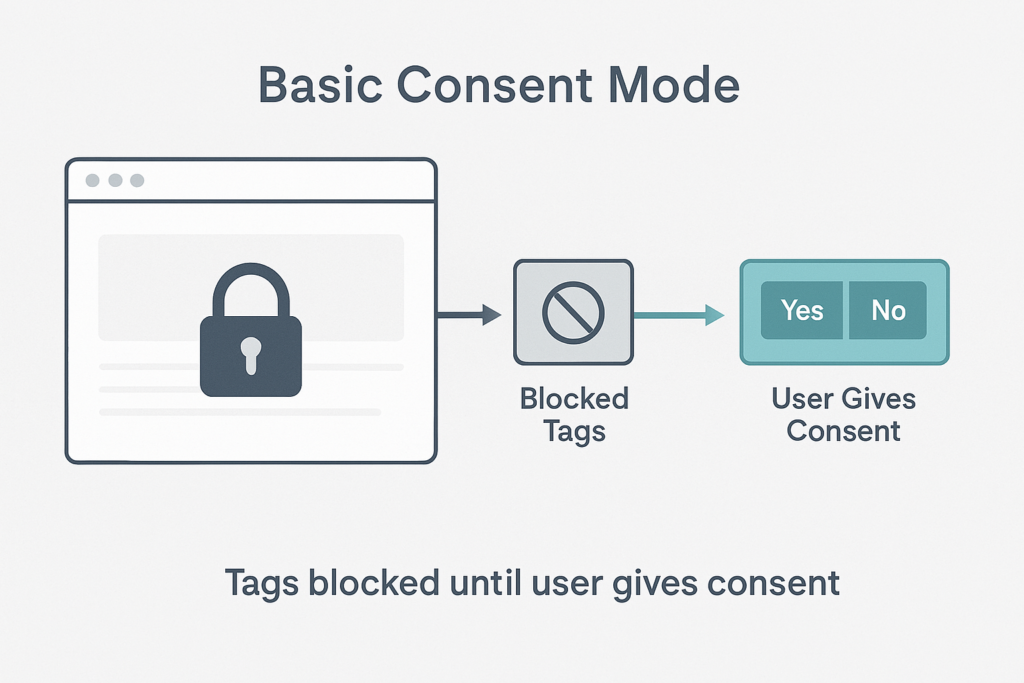
Basic Consent Mode
In basic consent mode, tags are blocked until the user interacts, and if they don’t consent, no data is transferred at all.
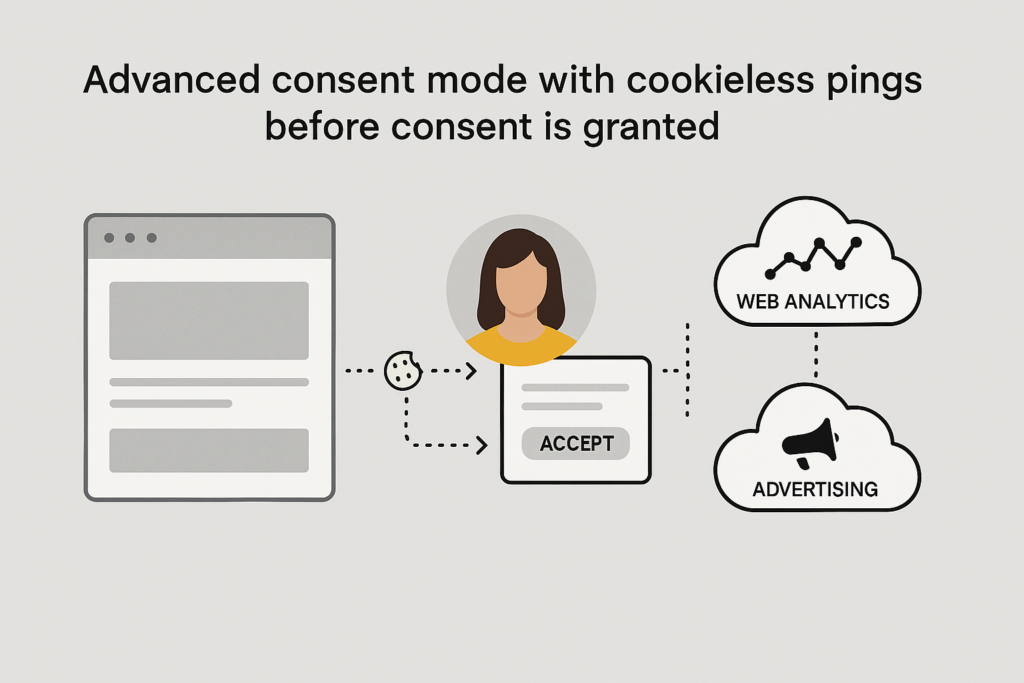
Advanced Consent Mode
In advanced consent mode, tags can load with defaults (often “denied”) and send cookieless pings until consent is granted, enabling improved modelling.
How to Check If Conversion Tracking is Working
To check if your conversion tracking is working, you should verify it in layers – it’s the easiest way to check it. Don’t just look at one dashboard – confirm the full chain from the browser, to analytics/debug tools, and to ad platform reporting.
Start with this mindset: a conversion can be “not working” because:
- The tag never fires.
- It fires but sends the wrong data.
- It reaches analytics but doesn’t get marked as a key event.
- It’s recorded but not attributed the way you expect.
Check Layer One: Does the tag fire in the browser?
Use Google Tag Manager’s Preview/Debug mode (Tag Assistant debug interface). Google explains that the debug interface shows how tags are fired and what data is being processed, and updates as you click through your site. It’s specifically designed for verifying whether triggers fire properly and what data is passed.
Check Layer Two: Does GA4 record the right events and key events?
GA4 uses key events for actions that matter. Google defines a key event as an event that measures an action important to business success, and recommends verifying key events through:
- Real-time report (Key events by event name), and
- DebugView (real-time troubleshooting).
If you’re debugging ecommerce specifically, Google also notes that reports can take time to populate, and recommends DebugView to verify your ecommerce events in real time after enabling debug mode.
Check Layer Three: Does Google Ads recognise the conversion action?
In Google Ads, a very common confusion point is tracking status.
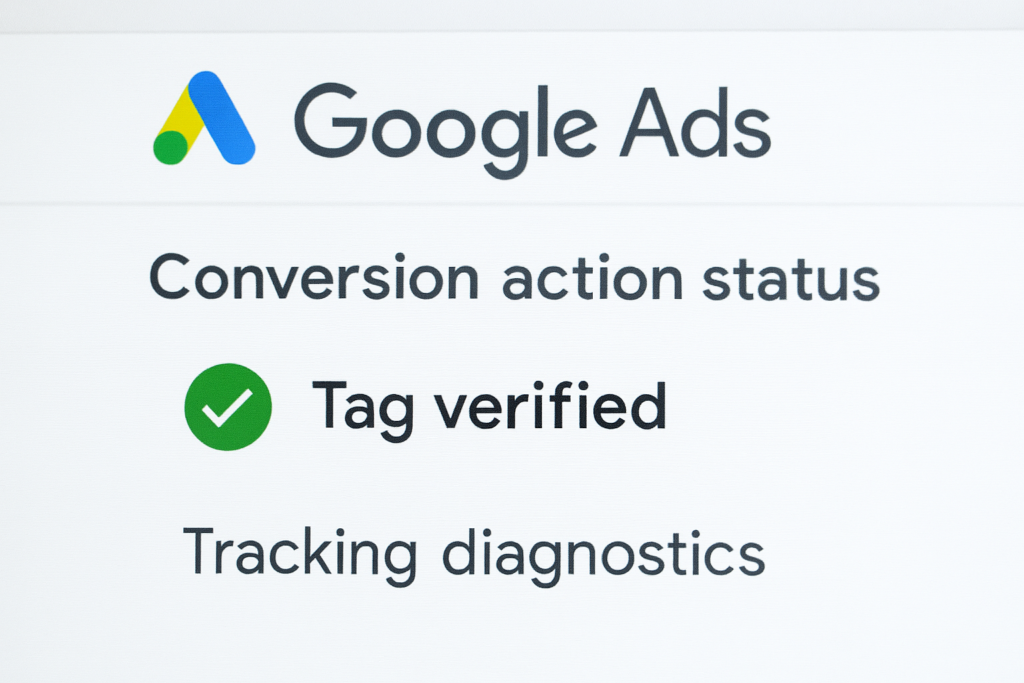
Google explains that “Unverified” means the conversion tracking tag for that conversion action has not yet fired (and verification can take hours after the first firing).
If your Google Ads conversions show “Unverified” or “Tag inactive,” Google’s guidance is to use Tag Assistant, which is integrated into Google Ads and can be launched from the conversions interface to investigate and verify your conversion actions.
Here are the Common Causes When Tracking Looks “installed” But Still Isn’t Working
- Auto-tagging / GCLID not making it through to the right pages.
Google recommends turning on auto-tagging and ensuring click trackers and server-side redirects pass the GCLID to landing pages.
- Cross-domain conversions not attributed properly.
If your conversion happens on a different domain, Google points to domain linking so the GCLID can be passed through.
- Missing conversion linker when using GTM.
Google states the Conversion Linker tag detects ad-click info in landing URLs and stores it in cookies on your domain. Without it, attribution can break.
- Firing tags inside an iframe.
Google explicitly advises not to fire tags from within an iframe.
- Consent choices blocking tags.
In basic consent mode, Google states tags remain blocked unless consent is granted; in the UK, the ICO sets out that consent is required for non-essential cookies and similar technologies unless exceptions apply.
If You’re Also Tracking Meta Ads: Here’s a Quick Verification Guide
For social platforms, browser-side verification tools can save a lot of time. The Meta Pixel Helper Chrome extension is described as a troubleshooting tool that validates pixel implementation and provides real-time feedback (including warnings and errors).
Let’s Get In Touch.
If your conversion tracking feels unclear, patchy, or hard to trust, we can help you fix the setup and turn the data into something useful.